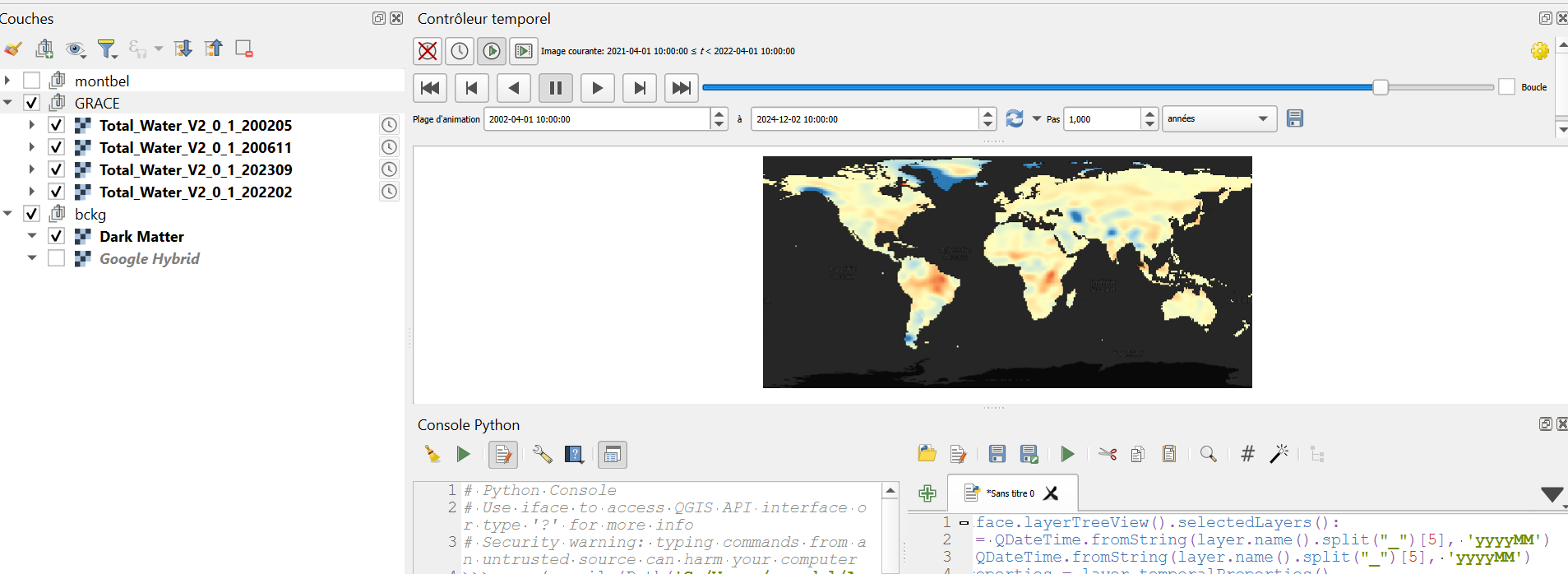
QGIS integrates a time manager. This is great for vector layers but quite limited when it comes to raster layers. Luckily, there’s a way around that!
I often have to deal with satellite tiles such as SWOT’s or Sentinel-2’s and I need to visualize the time evolution of the derived images. I really do not enjoy clicking ten times to see the differences between layers, especially when there’s a time manager!
The start_time/end_time values of a tile are often defined in the name of the file. The time manager allows users to define time ranges or to retrieve them from the file name but manually. Not very convenient when you have multiple tiles.
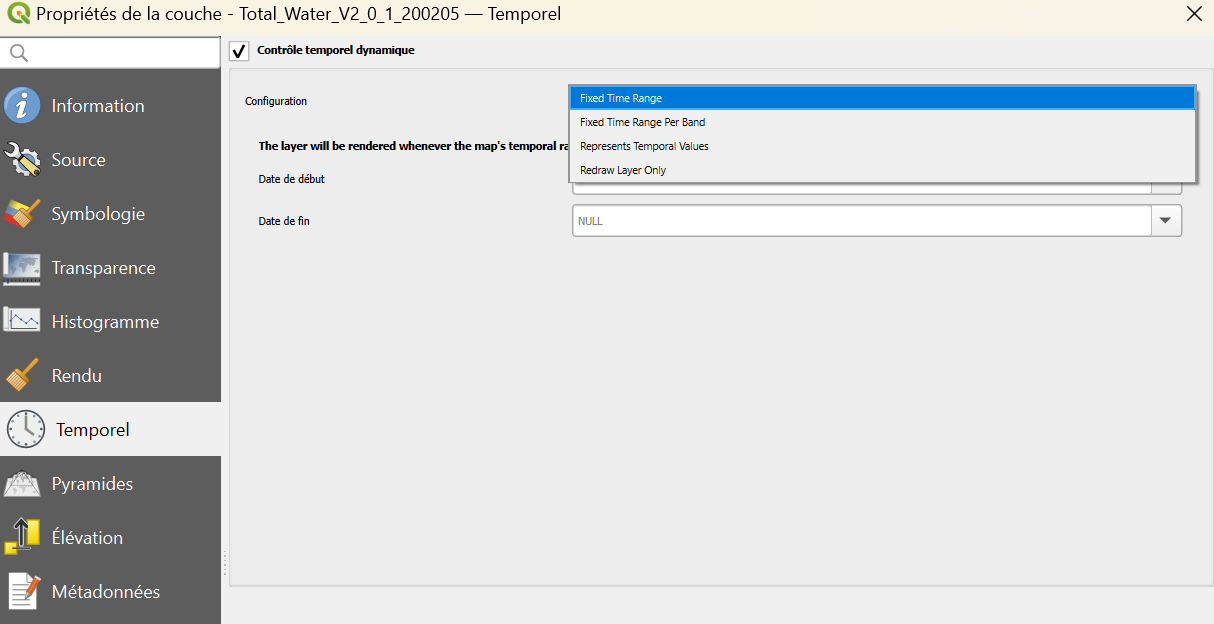
What we really want to do is to select a bunch of tiles and have a “Time Range from Expression” function that retrieves the time range from all file names. We will probably ask for this development in the future.
In the meantime, there’s a way around using the a PyQGIS script. Here’s an example:
for layer in iface.layerTreeView().selectedLayers():
dateStart = QDateTime.fromString(layer.name().split(““)[13], ‘yyyyMMddThhmmss’)
dateEnd = QDateTime.fromString(layer.name().split(””)[14], ‘yyyyMMddThhmmss’)
temporalProperties = layer.temporalProperties()
temporalProperties.setIsActive(True)
temporalProperties.setMode(Qgis.RasterTemporalMode.FixedTemporalRange)
temporalProperties.setFixedTemporalRange(QgsDateTimeRange(dateStart, dateEnd))
Open the python console, display all the tiles you want to process on the map and run this script. A clock should appear next to each processed tiles.
Then, open the Time Manager, set the whole time period and that’s it. You can now use the slider or the “Play” icon to analyse the time evolution of your tiles.